
Sales & invoicing · 3 steps
Take a sales order
Record a confirmed customer order before you bill it, then convert it to an invoice when you deliver.
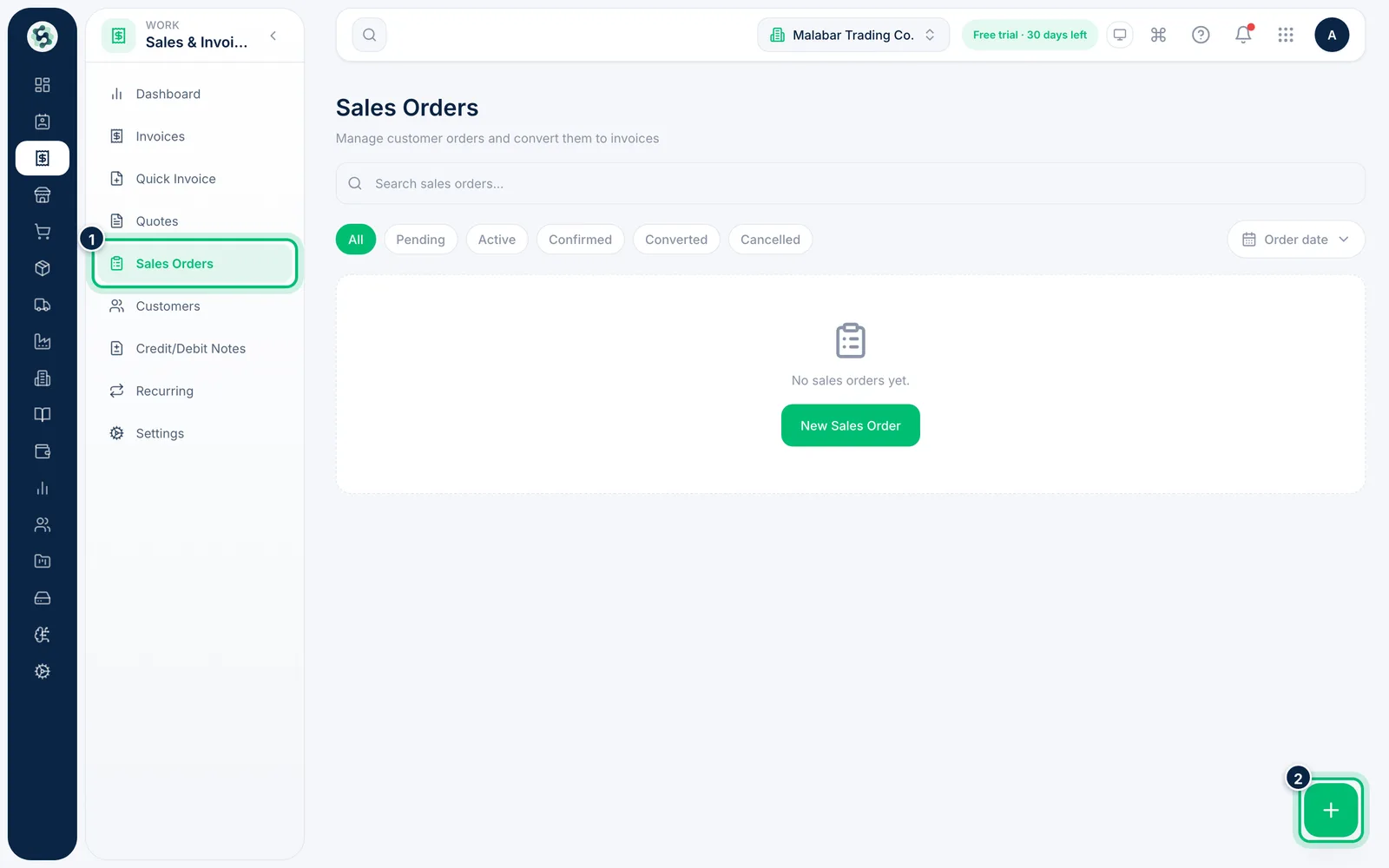
1Open Sales Orders
Open Sales & Invoicing → Sales Orders. Filter by Pending, Active, Confirmed, Converted or Cancelled, and choose the + button to take a new order.
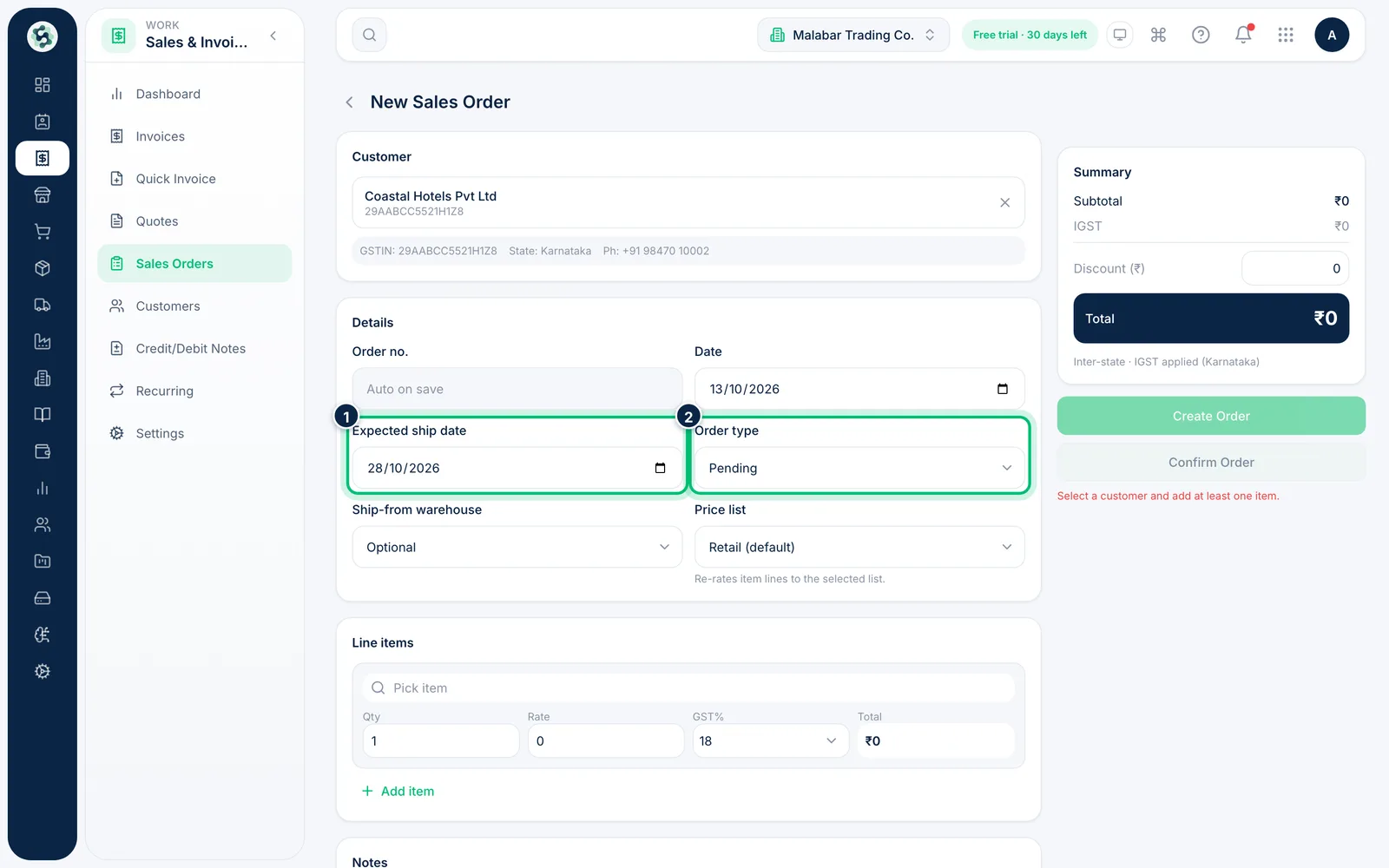
2Fill in the order
Choose the customer and add the items, just as on an invoice. Under Details, set the Expected ship date (it starts 15 days after the order date and follows the date until you change it) and the Order type — Pending or Active.
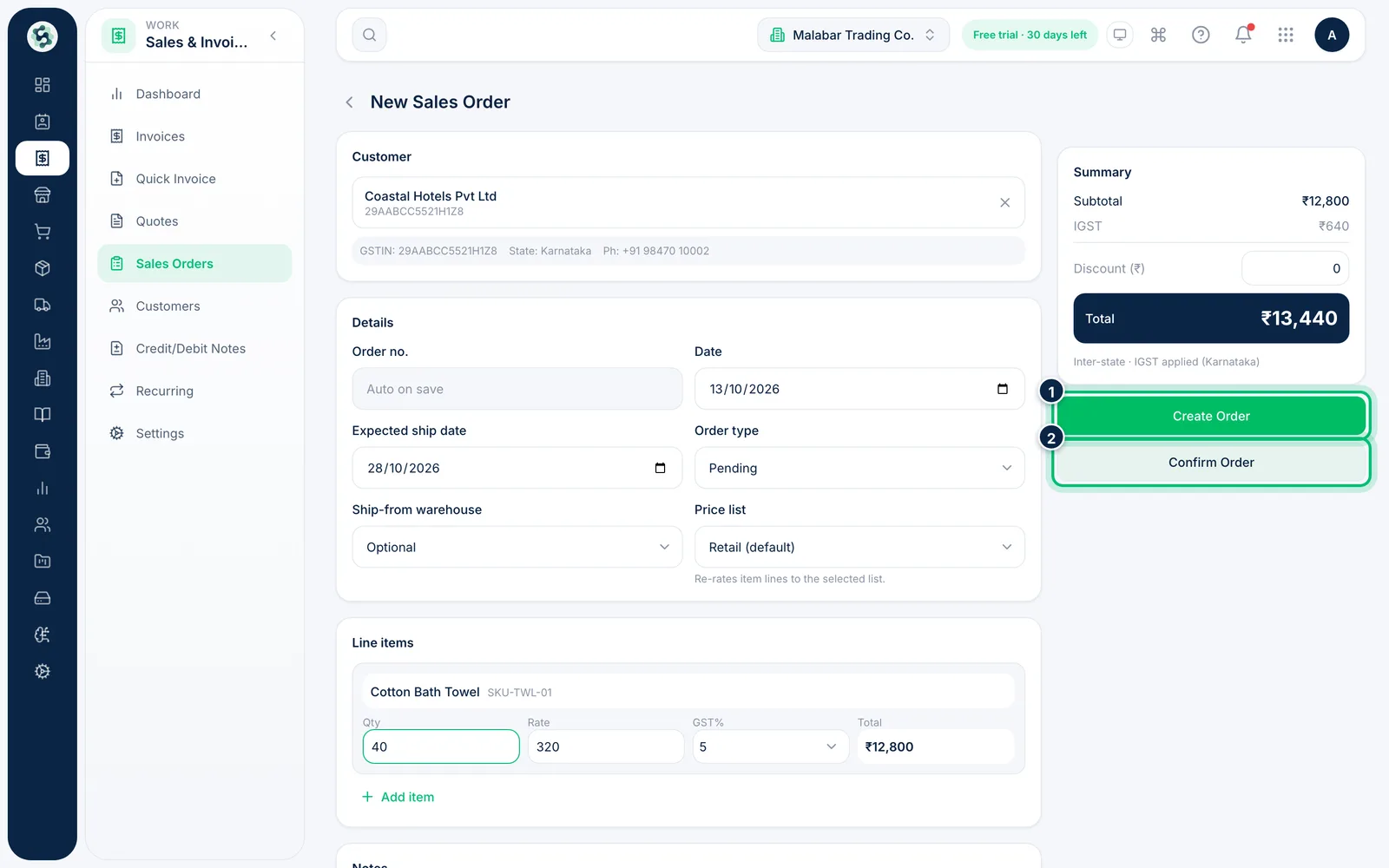
3Create or confirm the order
Choose Create Order to save it, or Confirm Order once the customer has committed. Once an order is confirmed, open it again and choose Convert to Invoice to bill it.
Related guides
Still stuck? Contact our support team — or start a free trial to try this in your own company.