
Drive · 4 steps
Delete files and restore them from Trash
Remove what you no longer need, safely: deleted items wait in Trash for 30 days so you can bring them back.
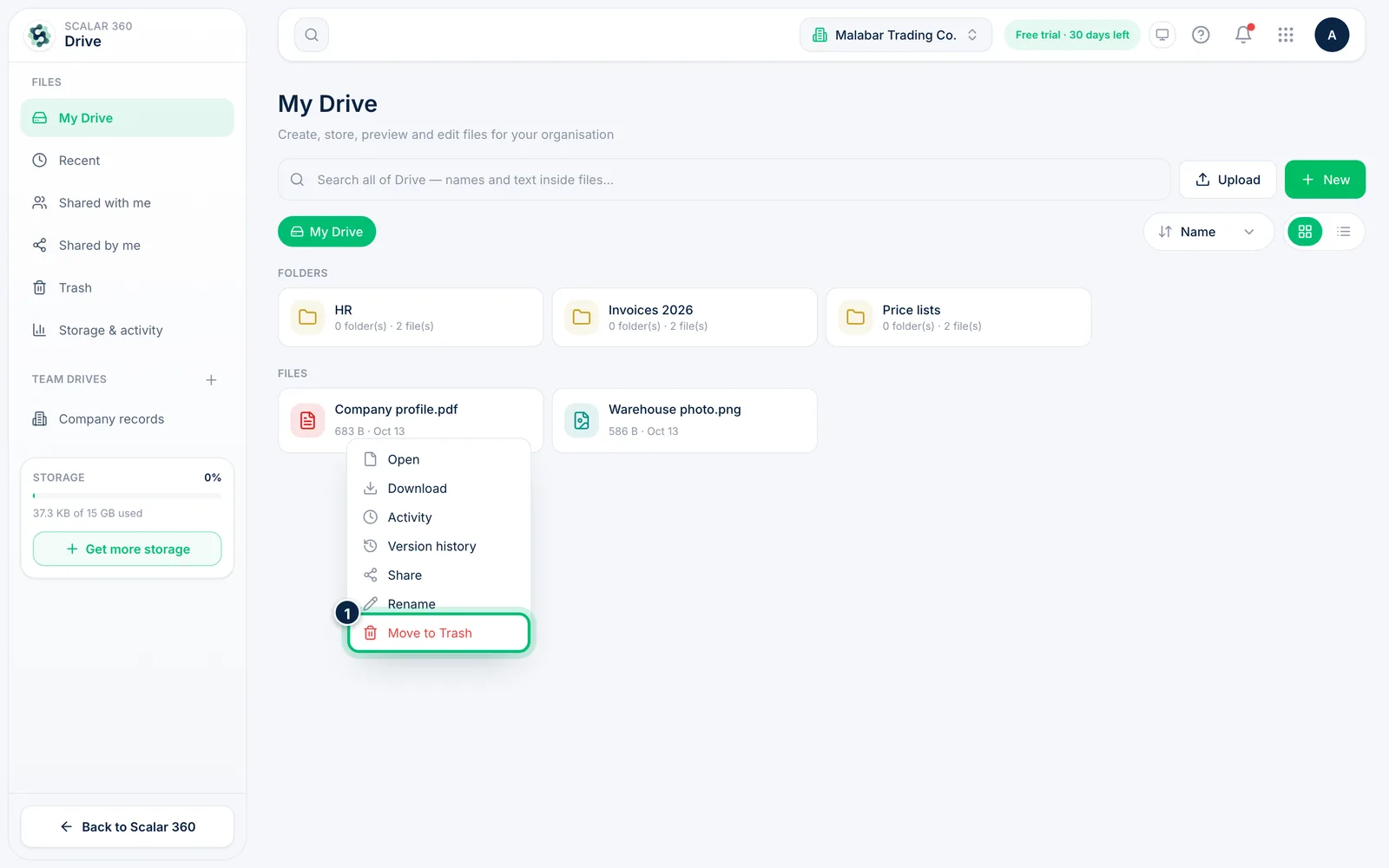
1Move an item to Trash
Choose the More button on a file or folder and pick Move to Trash. Nothing is erased yet.
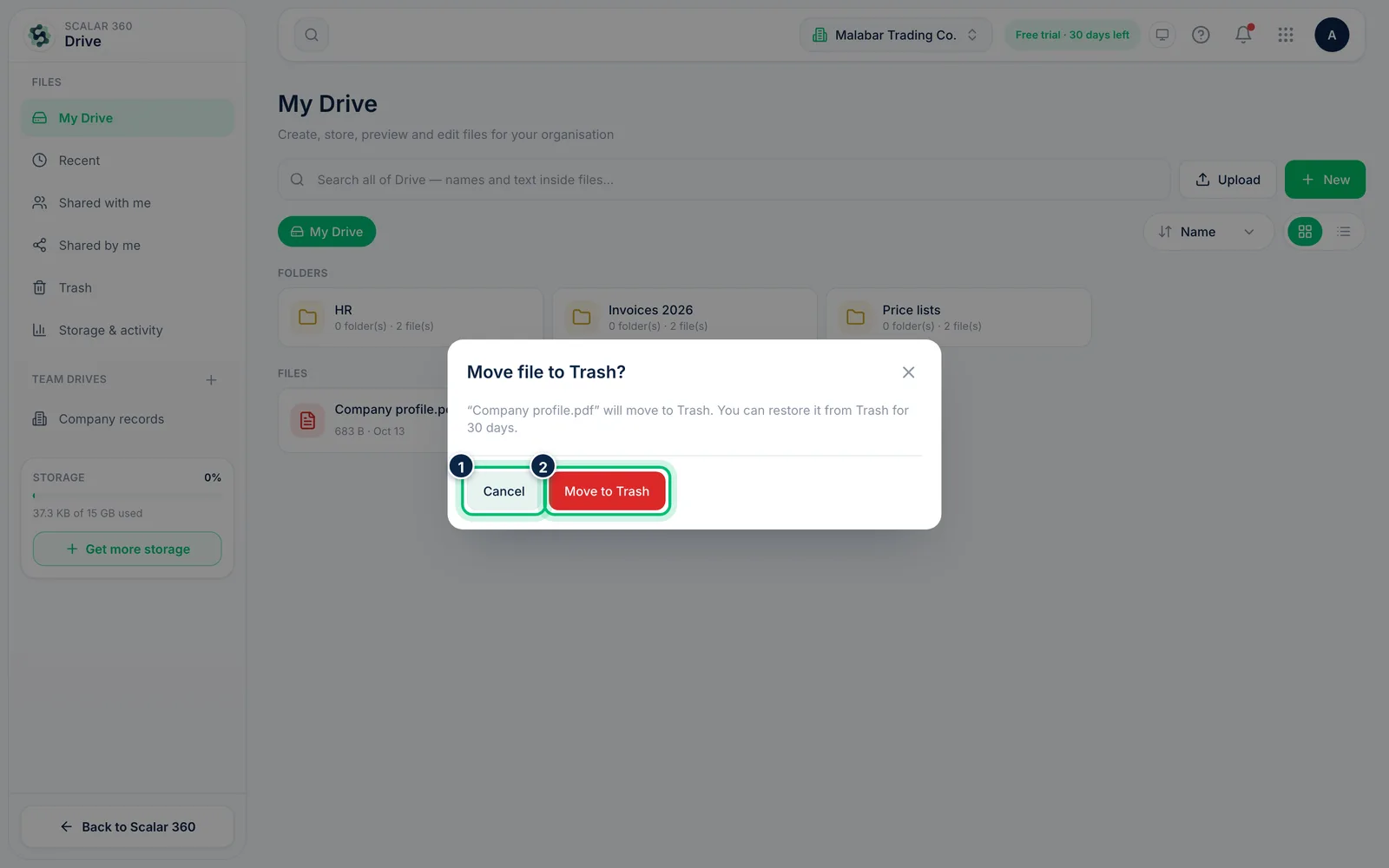
2Confirm the deletion
Drive asks you to confirm. Deleting a folder moves everything inside it to Trash too. Choose Move to Trash to confirm or Cancel to keep it.
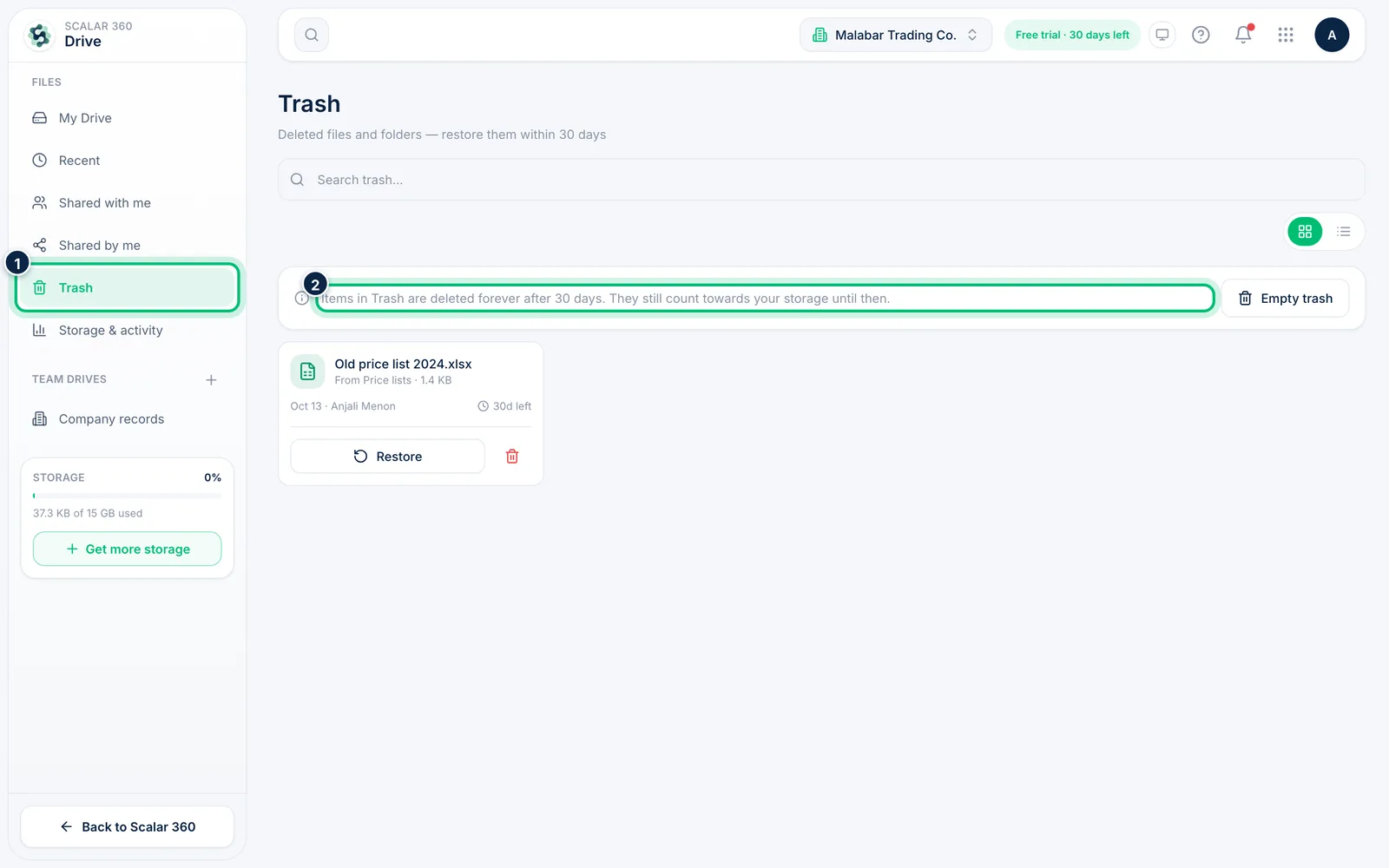
3Open Trash
Choose Trash in the left panel. Each item shows where it came from, who deleted it and how many days are left before it's deleted forever.
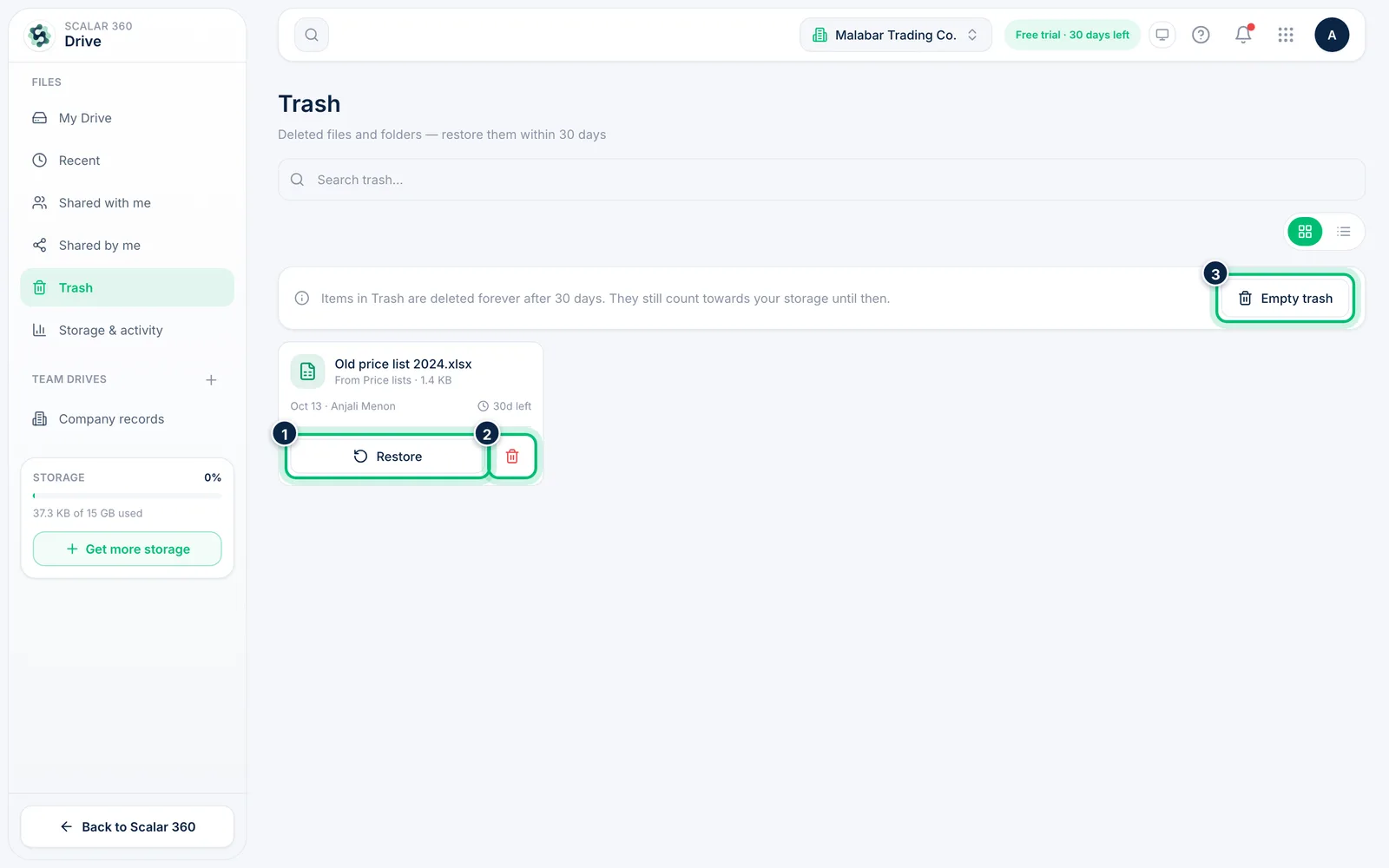
4Restore or delete forever
Choose Restore to put an item back where it was. To remove it for good use the bin icon on the item, or Empty trash for everything; both ask you to confirm first.
Related guides
Still stuck? Contact our support team — or start a free trial to try this in your own company.