
Super Intelligence (AI & API) · 5 steps
Generate a grant code and review API access
Give a self client permission for specific scopes, exchange the code for tokens, then review authorised apps and API activity.
Before you start: Add a self client first. A grant code works once and expires within minutes.
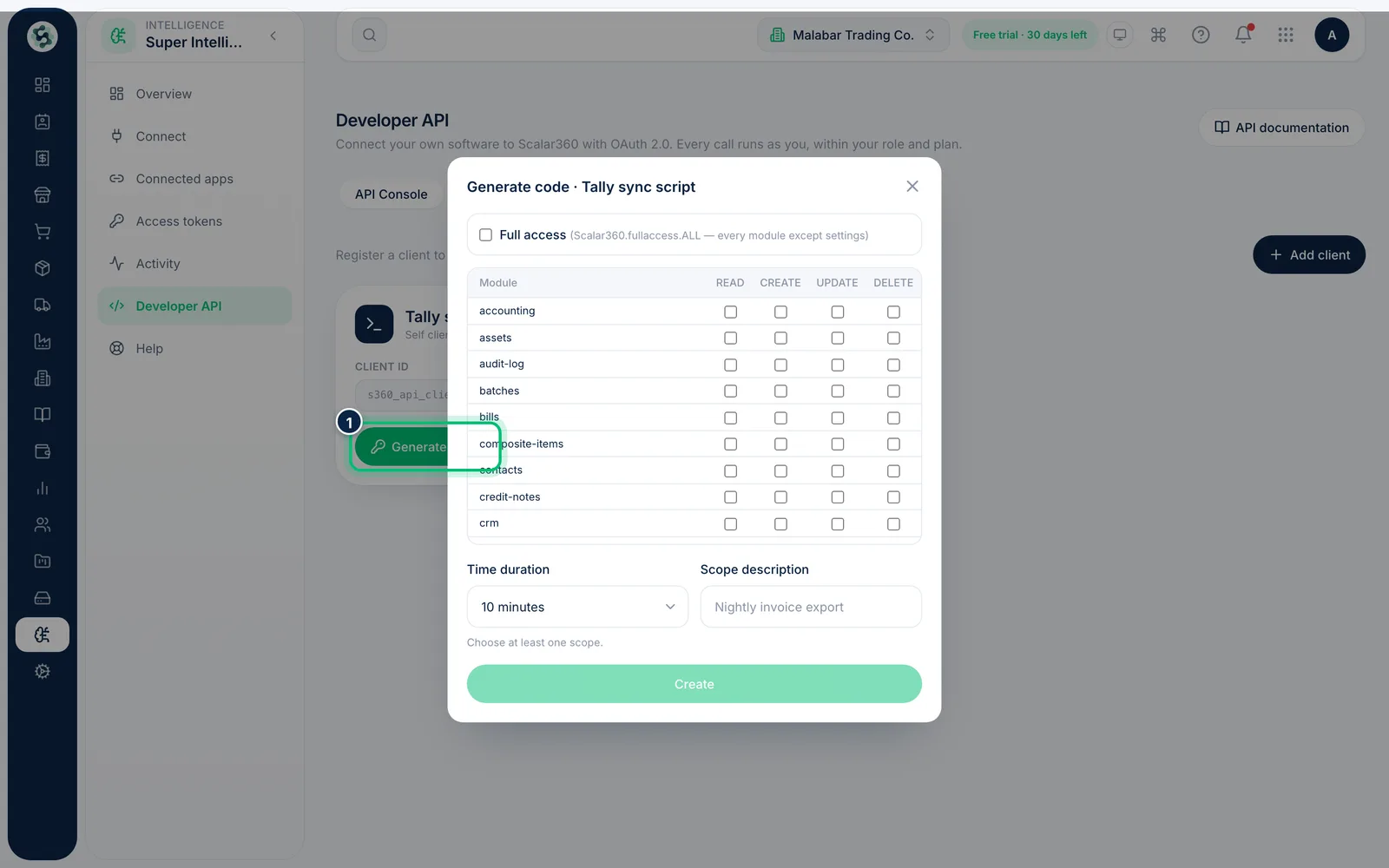
1Choose Generate code on a self client
On the API Console tab, find your self client and choose Generate code. A form opens listing the scopes you can grant.
2Pick the scopes
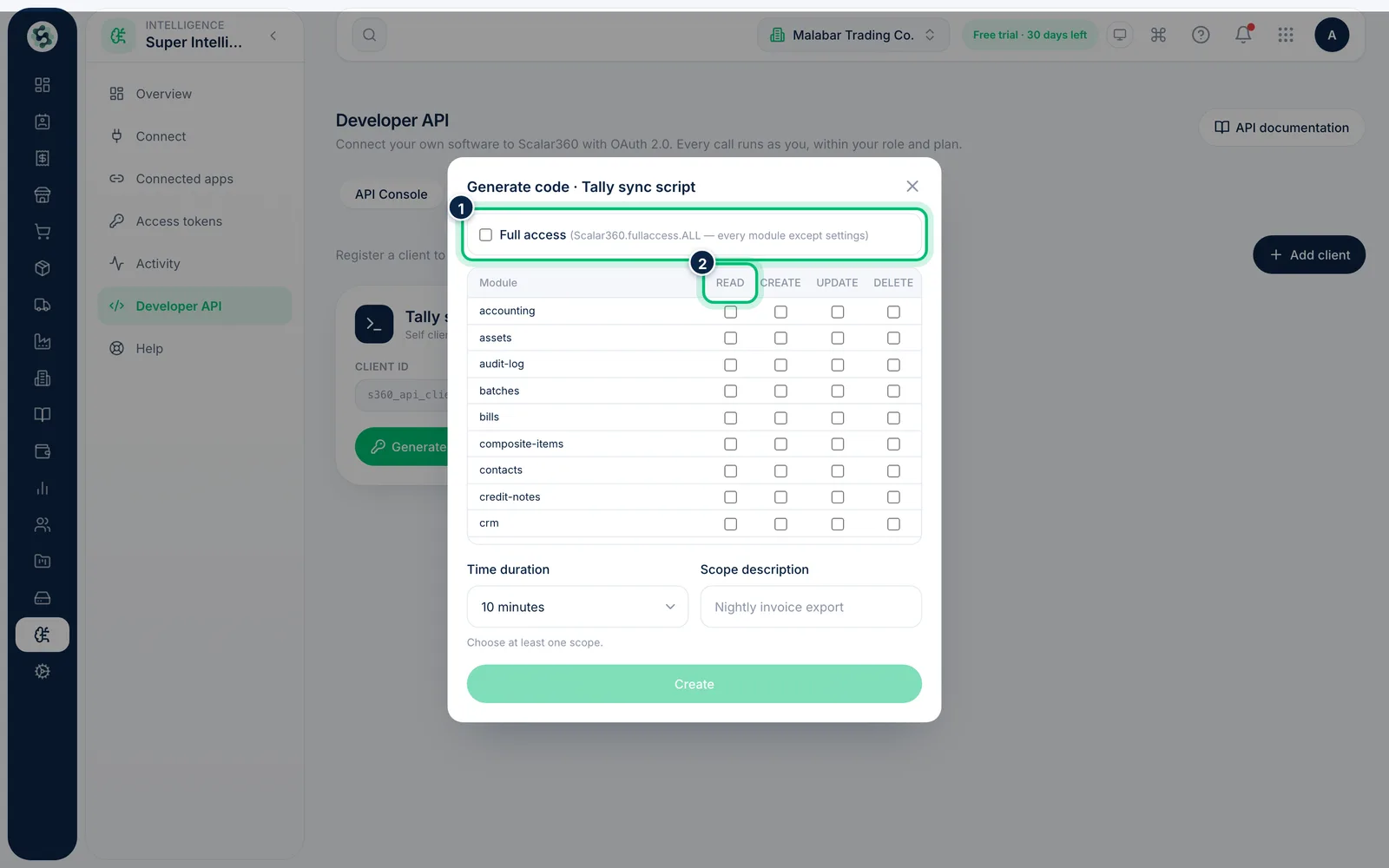
Tick Full access for everything, or leave it unticked and tick individual boxes in the table: each module has READ, CREATE, UPDATE and DELETE. Grant only what the integration needs.
3Set the time and describe it
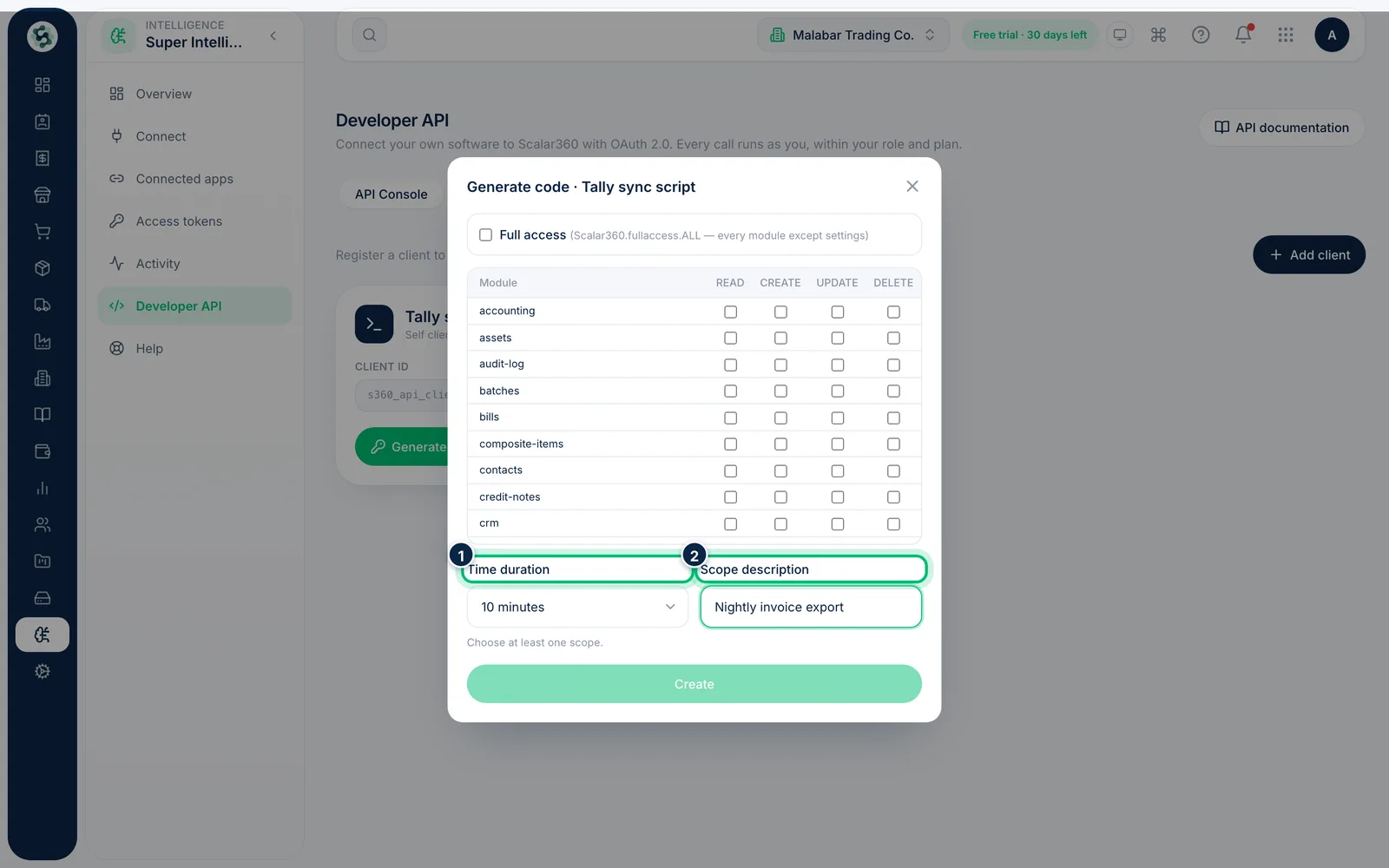
Choose the Time duration — 3, 5, 7 or 10 minutes — and add a Scope description such as what the script does. Choose Create to get the code, then exchange it for an access and refresh token using the command shown.
4Review authorised apps
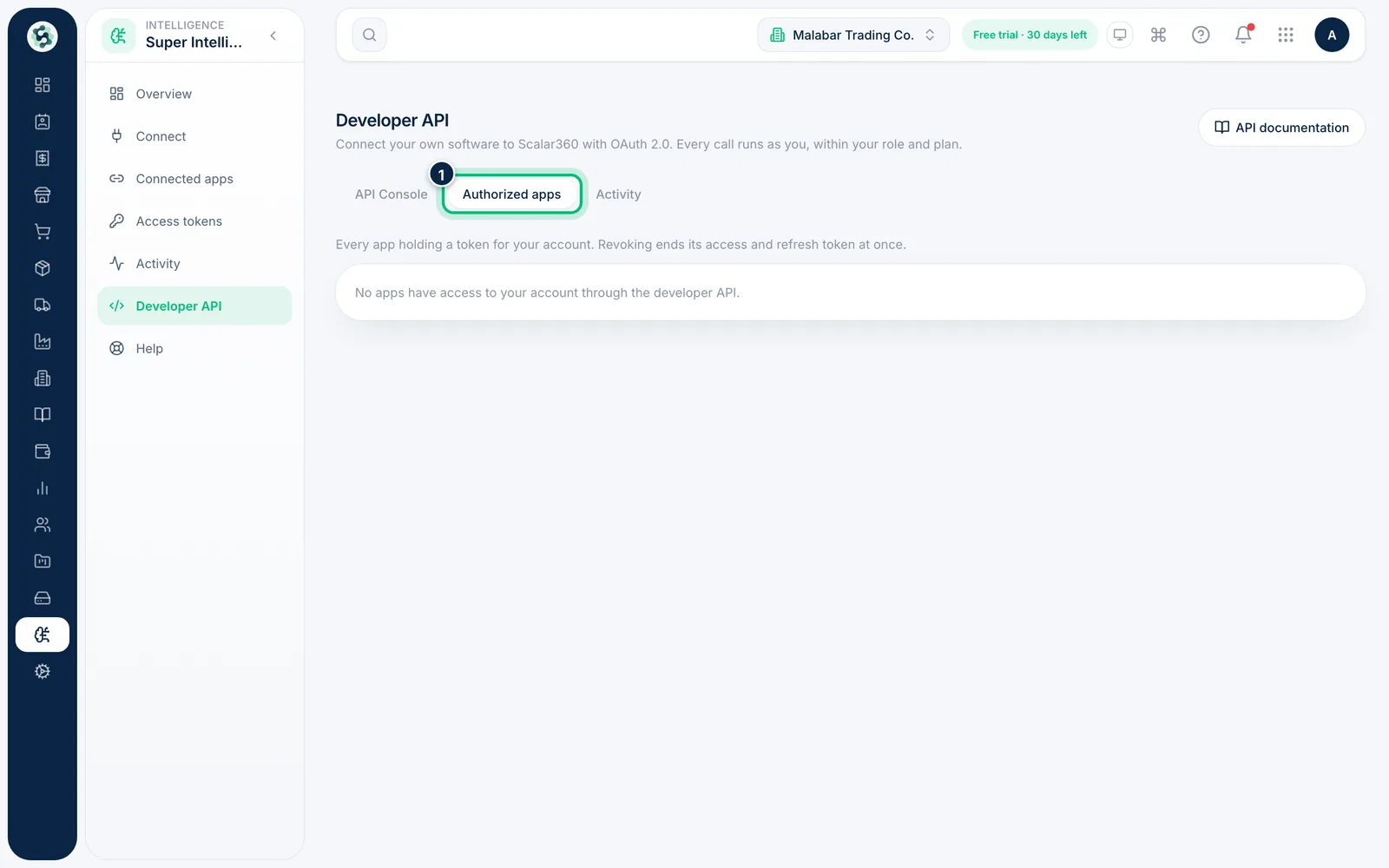
The Authorized apps tab lists every app holding a token for your account, its scopes, and when it was last used. Choose Revoke to end its access and refresh token at once.
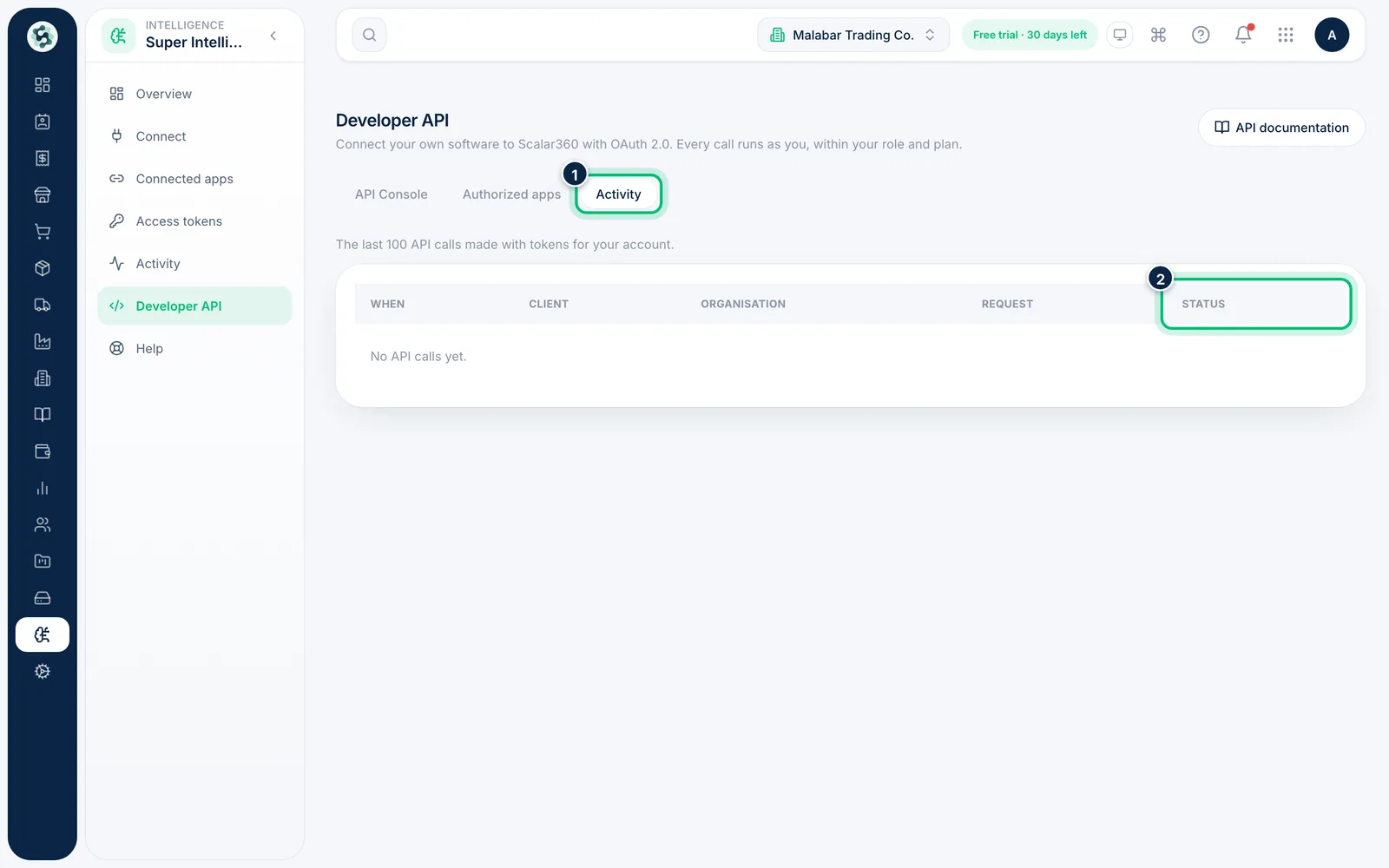
5Check API activity
The Activity tab shows the last 100 API calls made with tokens for your account — When, Client, Request and Status.
Related guides
Still stuck? Contact our support team — or start a free trial to try this in your own company.