
Sales & invoicing · 4 steps
Customise sales fields, columns and numbering
Capture extra details on customers, invoices and quotes, choose which columns your sales lists show, and set how invoices, quotes and notes are numbered.
Before you start: You need edit access to the records you're customising.
1Open Sales Settings
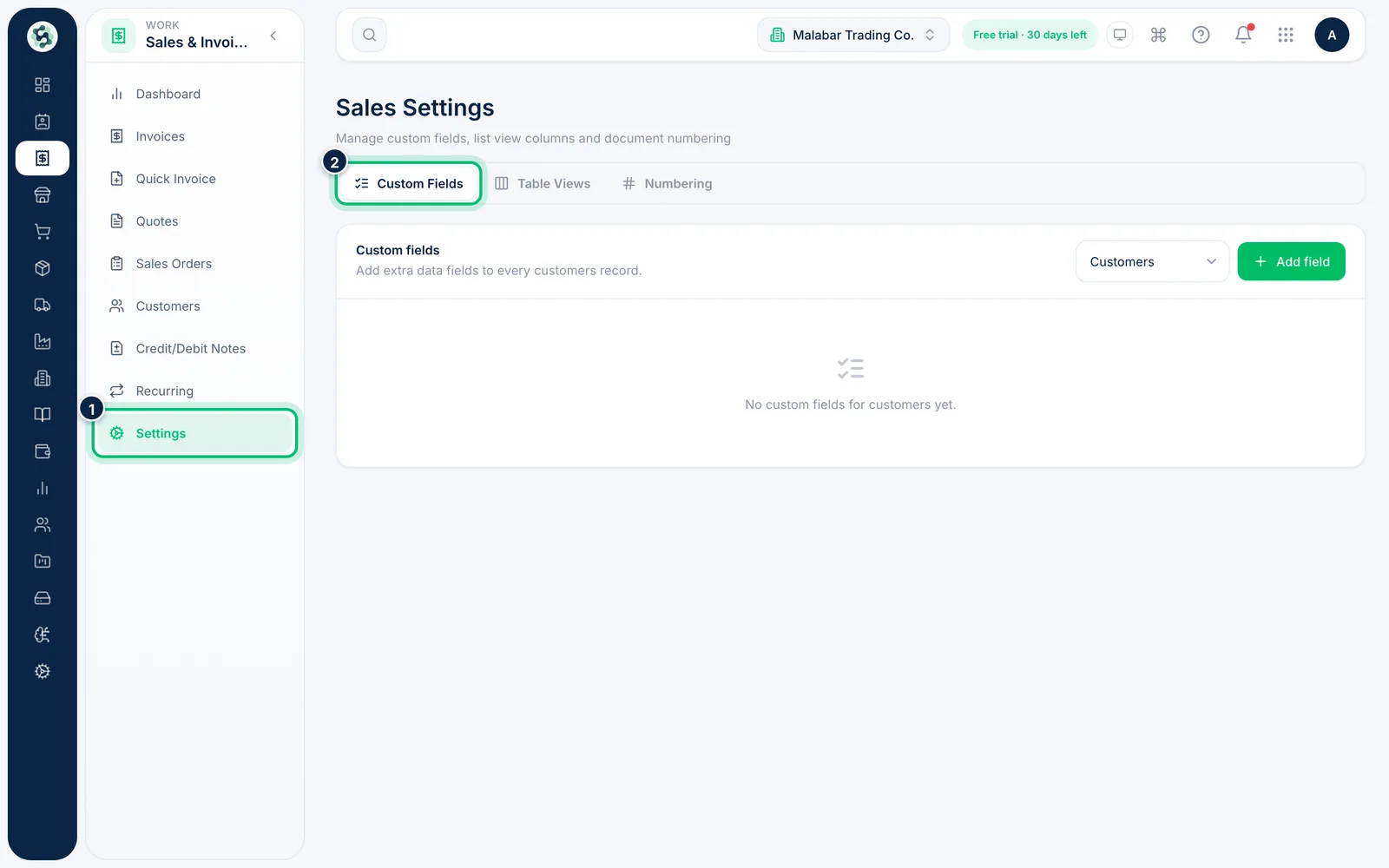
Open Sales & Invoicing → Settings. The Custom Fields tab lists the extra fields for customers, invoices, quotes, credit notes and recurring invoices.
2Add a custom field
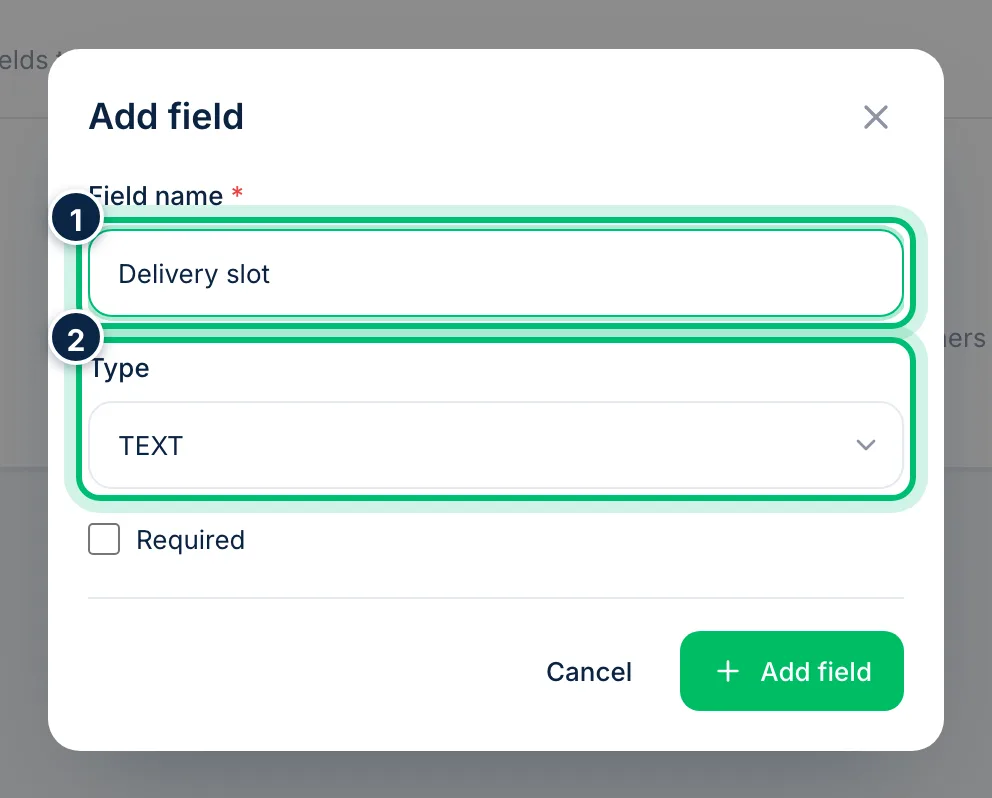
Choose Add field in the section you want, enter a Field name and pick its Type. The new field appears on that form, for example on every invoice.
3Choose the columns in your lists
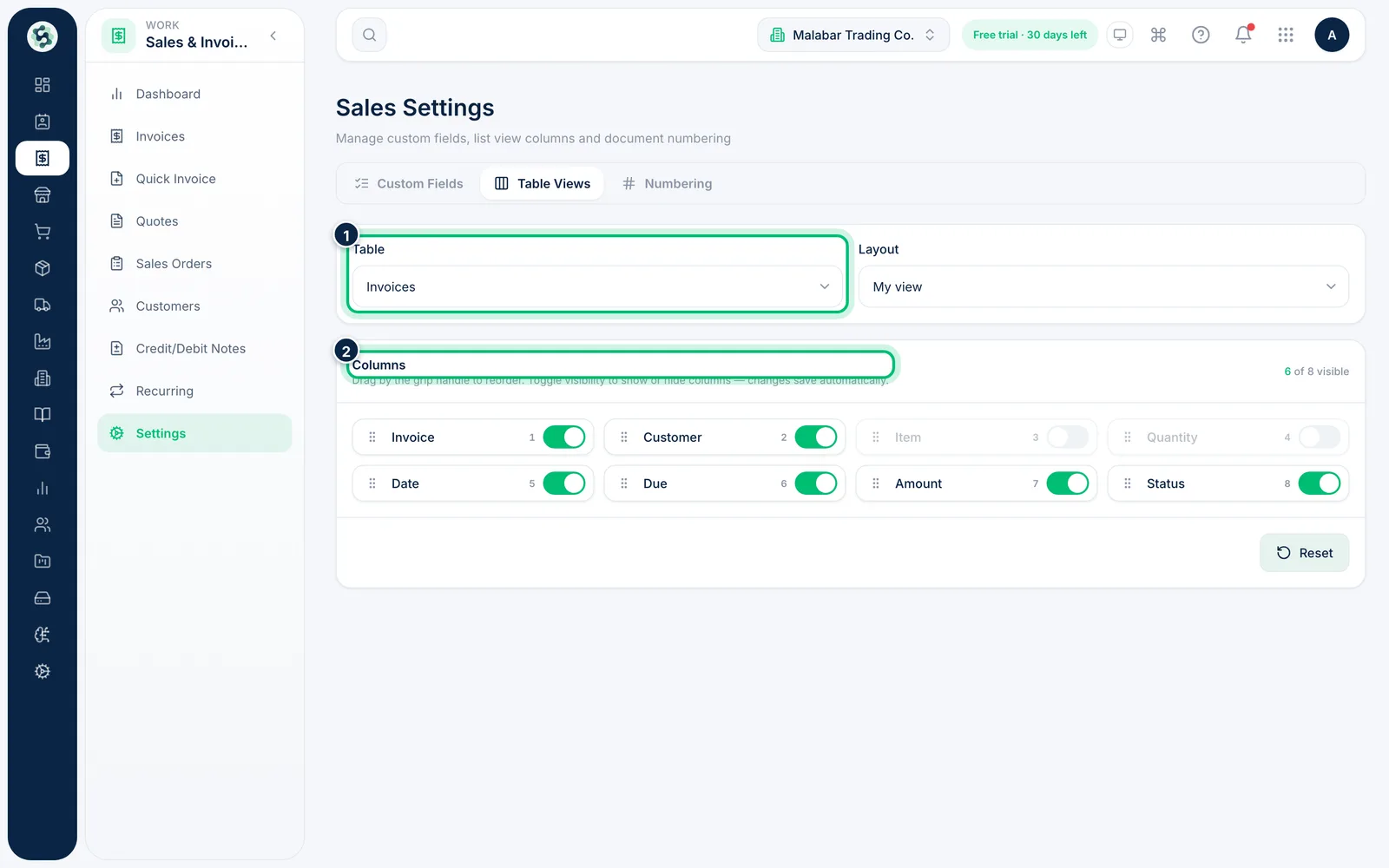
Open Table Views, pick a Table and show, hide or drag columns into the order you want. Changes save automatically, and Layout shows whether you're editing My view.
4Set your document numbering
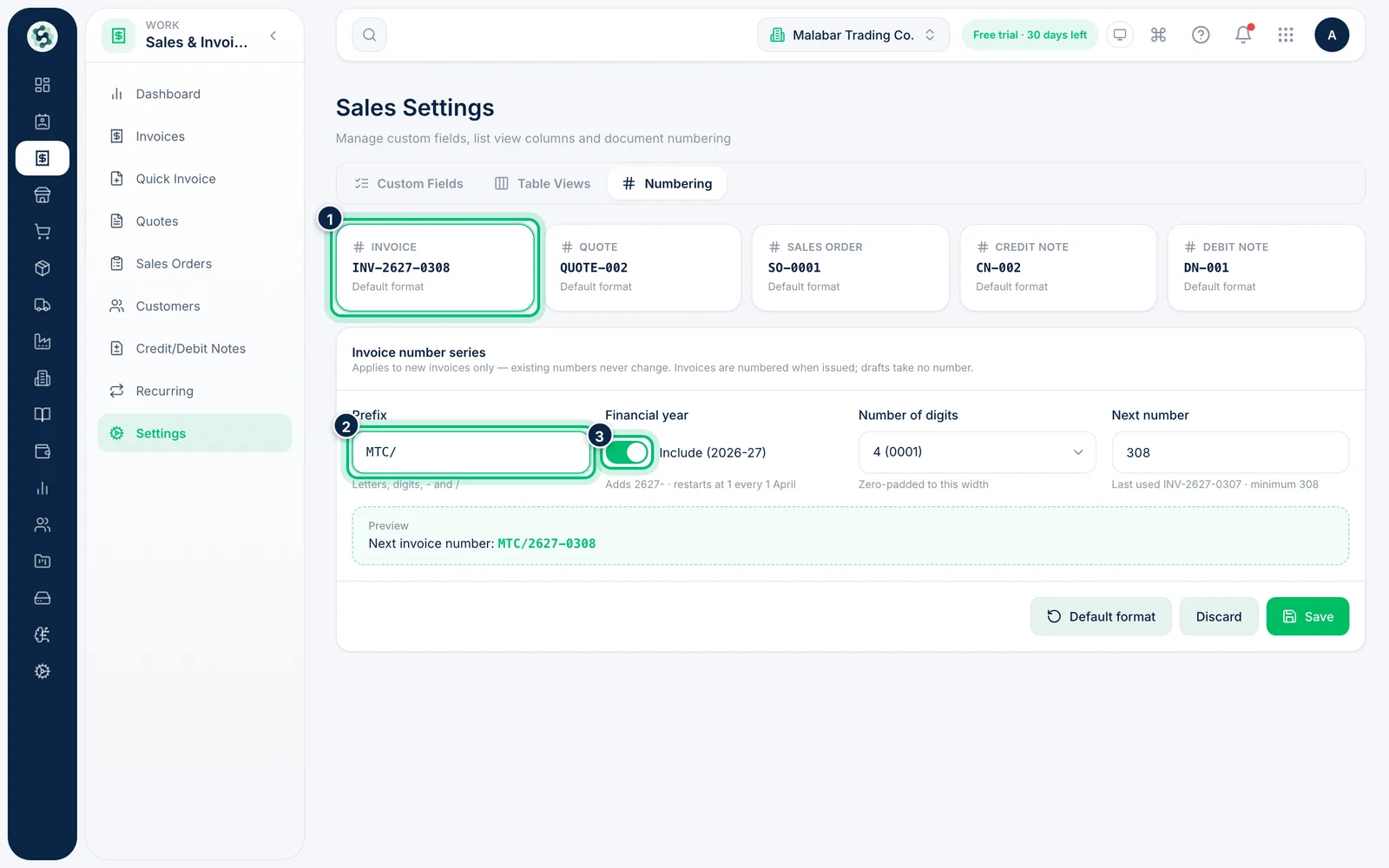
Open Numbering. Each card shows the next number for invoices, quotes, sales orders, credit notes and debit notes. Choose one to change its prefix, whether to include the financial year (2627 for 2026–27), the number of digits and the next number — the preview shows exactly what the next document will be called.
Related guides
Still stuck? Contact our support team — or start a free trial to try this in your own company.